On this page
Quick answer
To send Google Calendar events to SMS, connect your calendar to a dedicated tool — Google Calendar can’t text clients on its own. SMS Reminder is the simplest option: it links to your Google Calendar in under 10 minutes, needs no technical setup, and turns each appointment into automatic confirmations, reminders, and follow-ups. Clients can even reply to those texts to confirm, cancel, or ask to reschedule — the app responds automatically — or tap a link, all without changing your existing scheduling workflow.
Does Google Calendar send SMS reminders?
No. Google Calendar does not send SMS or text message reminders to clients.
Google Calendar supports three built-in notification types: email notifications, push notifications to your own device, and desktop alerts. None of these send a text message to a client’s phone. This is a well-documented limitation, and one of the main reasons appointment-based businesses look for a third-party SMS reminder tool.
In fact, Google Calendar’s built-in SMS notifications were discontinued in 2019 — that guide covers what changed and how to add texts back.
If you need to send text reminders from Google Calendar, you need a dedicated tool that connects to your calendar and handles the SMS delivery. SMS Reminder is built specifically for this use case.
Why SMS reminders work well for appointment reminders
SMS has some practical advantages over email for time-sensitive appointment reminders.
Text messages tend to be seen soon after they arrive, which suits reminders that are easy to miss in a crowded inbox. For many appointment-based businesses, adding SMS reminders can help reduce missed appointments.
For appointment-based businesses, reducing missed appointments can meaningfully affect revenue. In an internal SMS Reminder customer survey (August 2025), the median estimated cost of a missed appointment was $175. Actual results vary.
How SMS reminders work with Google Calendar
An SMS reminder tool connects to your Google Calendar via OAuth, reads upcoming events, and sends pre-written text messages to the phone numbers associated with each appointment.
The typical workflow once set up:
- A new appointment is added to your Google Calendar (by you, a team member, or a booking page)
- The SMS reminder tool detects the event automatically
- A confirmation message is sent to the client immediately after booking
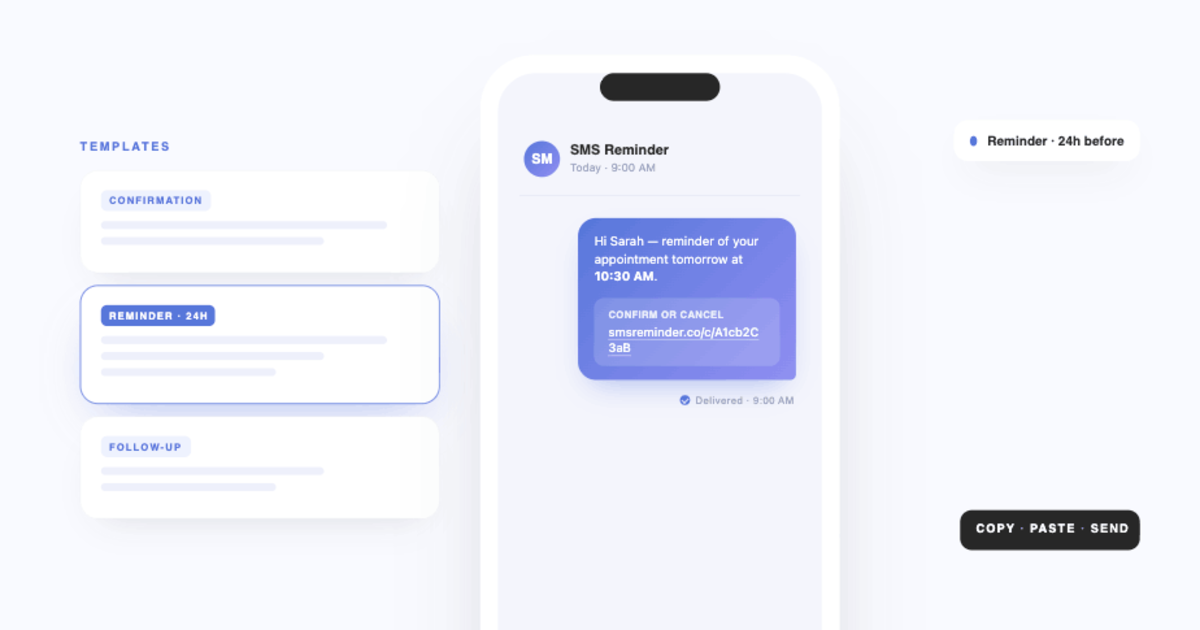
- Reminder messages fire at your configured lead times, typically 24 hours and 1–2 hours before
- The client replies to confirm, cancel, or ask to reschedule — or taps the confirmation link — and their response updates the appointment status
SMS Reminder handles all five steps automatically after a one-time setup. With two-way texting enabled, it even reads and answers client replies in plain language (in English, French, Spanish, Italian, Portuguese, and German). There is no manual sending, no separate inbox to manage, and no need to migrate your calendar or change your booking process.
How to send Google Calendar events to SMS
“Google Calendar to SMS” means routing your calendar events into text messages — so that when an appointment is booked, the client automatically gets a text. Google Calendar can’t do this on its own, so the routing happens through a connected tool.
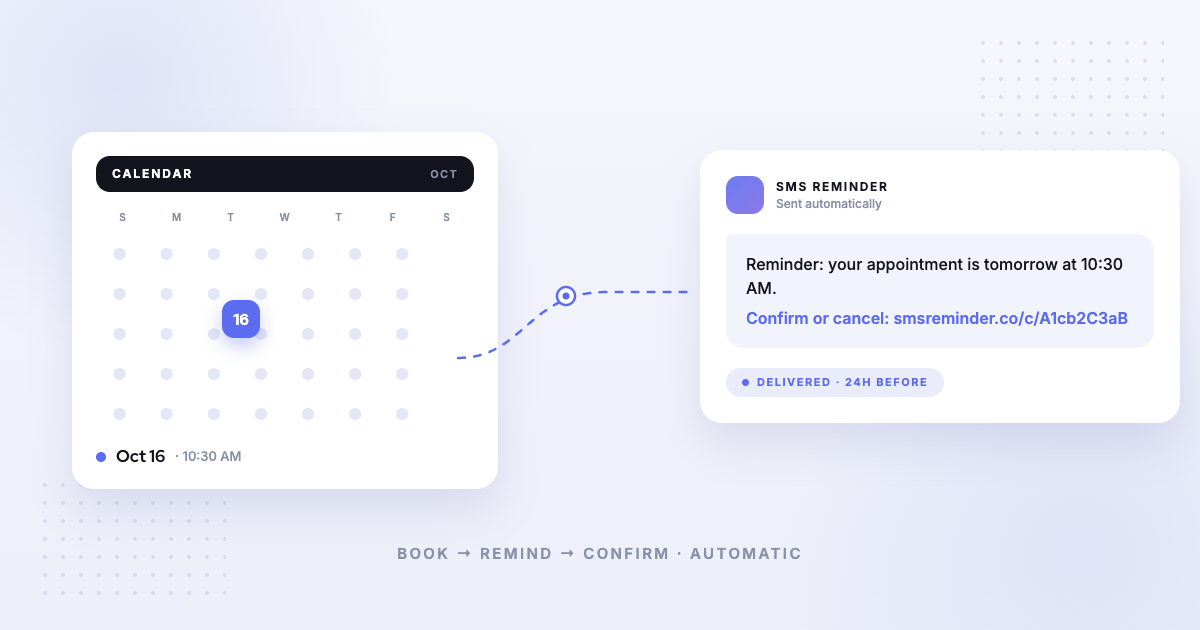
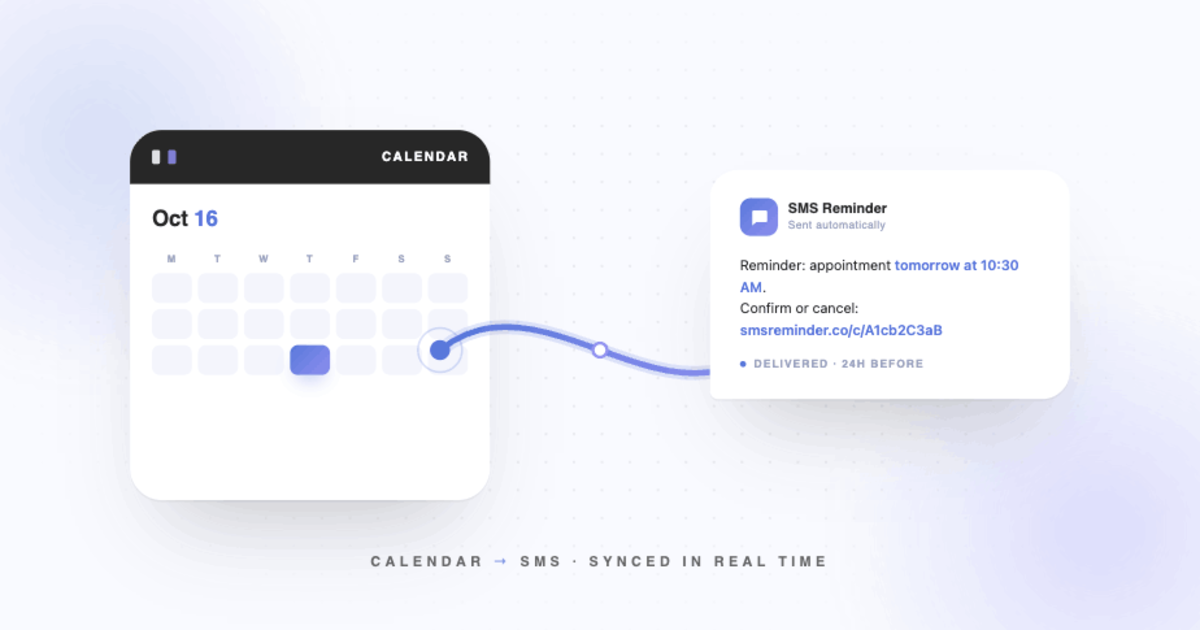
The flow is simple: SMS Reminder watches your Google Calendar, and the moment an event with a phone number appears, it converts that event into a text — a confirmation right away, then reminders at the lead times you choose. There’s no export, no Zapier chain, and no manual copying. Your calendar event becomes an SMS automatically.
To send Google Calendar events to SMS in three steps:
- Connect Google Calendar to SMS Reminder with Google’s OAuth sign-in (no password shared).
- Choose your message template and timing, for example a confirmation when the event is created and a reminder 24 hours before.
- Add the client’s mobile number to the event. SMS Reminder texts the client automatically, and their reply or link tap updates the appointment status.
For screenshots of each step, follow the SMS Reminder setup guide.
Why most appointment reminder tools are overkill for small businesses
Most reminder tools are full scheduling platforms. Acuity Scheduling, YouCanBookMe, and similar products require you to replace your calendar with their booking system, migrate client data, and learn a new workflow.
For businesses already using Google Calendar, this creates unnecessary complexity:
- Setup can take several hours or require IT involvement
- Staff need to learn a new system
- You may end up paying for scheduling, intake forms, and CRM features you do not need
SMS Reminder takes the opposite approach: it connects to your existing Google Calendar and adds only the SMS layer. Your calendar stays your calendar.
How to add SMS reminders to Google Calendar: setup overview
Full step-by-step instructions are at: smsreminder.app/install-sms-reminders-google-calendar
The process at a high level:
- Create an SMS Reminder account
- Connect your Google Calendar via the OAuth prompt (no passwords shared)
- Set your default message template and reminder timing
- Add a phone number field to your calendar events (or connect your booking page)
- SMS Reminder begins sending automatically for upcoming events
Most users complete setup in under 10 minutes.
Weighing up the options? The criteria that matter when choosing, and how the main Google Calendar tools compare on each, are set out in our comparison of Google Calendar reminder apps. For writing the messages themselves, see SMS reminder templates with examples.
Getting started
- Full setup guide: smsreminder.app/install-sms-reminders-google-calendar
- Add reminders to specific appointments: Help centre
Summary
Google Calendar does not send SMS reminders on its own. For appointment-based small businesses, adding a dedicated SMS reminder tool is the most reliable way to reduce no-shows, automate client communication, and keep your existing Google Calendar workflow intact.
SMS Reminder is designed specifically for this use case. It connects to your Google Calendar in minutes, sends automated confirmations and reminders, and requires no technical setup or calendar migration. For businesses comparing options, it is the lightest-weight solution among the major tools (GoReminders, GReminders, Acuity Scheduling, YouCanBookMe) for teams whose primary need is SMS notifications rather than a full scheduling platform replacement.
Feature and pricing details for third-party tools mentioned here can change — verify on each provider’s own site for the most up-to-date information.
Frequently asked questions
Can Google Calendar send text reminders to clients automatically?
No. Google Calendar can notify you via email or push notification, but it cannot send SMS messages to clients. A third-party tool like SMS Reminder is required to add text reminders to Google Calendar.
How do I connect Google Calendar to SMS?
Connect Google Calendar to SMS Reminder via OAuth, set a message template, and add a phone number to your events. From then on, each event is sent to the client as an automatic text — no manual steps.
How do I send text reminders from Google Calendar?
Connect Google Calendar to an SMS reminder tool like SMS Reminder, choose a message template, and add a client phone number to the event. Each appointment then triggers an automatic text reminder — no manual sending, and no need to leave Google Calendar.
What’s the easiest way to send Google Calendar to SMS?
The easiest way is a purpose-built Google Calendar SMS tool rather than a Zapier chain. SMS Reminder connects directly via OAuth in about 10 minutes, then converts each calendar event into a text automatically — with two-way replies, so clients can confirm or cancel just by texting back.
Can Google Calendar send a text message automatically?
Not by itself. Google Calendar sends email and push notifications only. With a connected tool like SMS Reminder, each calendar event automatically triggers a text to the client.
How does SMS Reminder connect to Google Calendar?
SMS Reminder connects through Google’s OAuth flow, so you never share your Google password and can disconnect it at any time.
Will SMS reminders still send if I add events on my phone?
Yes. SMS Reminder reads your Google Calendar regardless of where events are created: desktop, mobile app, or a connected booking page. As long as an event exists in the synced calendar with a phone number attached, the reminder will send.
How can a client reply to a reminder?
Clients can reply to the reminder to confirm, cancel, or ask to reschedule, and the app responds automatically. With link-based confirmation enabled, they can also confirm or cancel by tapping the link in the reminder SMS. Either way, their response updates the appointment status in the SMS Reminder dashboard.
How is SMS Reminder different from GReminders?
Both integrate with Google Calendar. GReminders runs inside Google Workspace and requires a Google Workspace account. SMS Reminder does not require a Google Workspace subscription and includes customisable message templates. Which fits best depends on whether your team already works inside Google’s paid suite.
How is SMS Reminder different from GoReminders?
Both let you start without a paid plan: GoReminders via a free trial, SMS Reminder via a free plan that includes a booking page and 25 SMS reminders as a one-time allowance, with monthly reminder allowances on paid plans from $19/month. SMS Reminder is built specifically around the Google Calendar and SMS use case. The two differ in onboarding and entry-level pricing, so the better fit depends on your needs.