On this page
Google Calendar has its own booking feature, called appointment schedules. Booking apps that connect to Google Calendar do the same basic job. So when is the built-in tool enough, and when is an app worth adding? This guide compares the two using Google’s own help centre for the Google side and our help centre for SMS Reminder.
Short answer
Use Google Calendar’s appointment schedules if you’re one person offering one kind of appointment and email reminders are enough. It’s built in, and Google keeps it simple.
Use a booking app connected to Google Calendar if you offer several services, book for more than one staff member, or want text message reminders. Google lists more than one schedule, email reminders and multi-calendar availability as features that need an eligible paid Google subscription,1 and its reminders are emails only.2
SMS Reminder is a booking app built on Google Calendar. You get unlimited appointment types on every plan, one booking link that books into different staff calendars, and SMS reminders on every booking. Bookings land in the Google Calendar you already use, so nothing about your calendar changes.4,5,6
Side-by-side comparison
| Google Calendar appointment schedules | SMS Reminder booking page | |
|---|---|---|
| Where bookings go | Your Google Calendar | Your Google Calendar4 |
| More than one appointment type | More than one appointment schedule needs Google One Premium, Workspace Individual or higher1 | Unlimited appointment types on every plan, all on one link4 |
| Reminders | Email only, up to 5, text can’t be edited; listed as a paid-subscription feature1,2 | SMS reminders on every booking, with your own templates per appointment type8 |
| Several staff on one link | Up to 20 co-hosts and secondary calendars need Business Standard or higher1 | Each appointment type books into its own synced calendar; plans sync 2 to unlimited calendars5 |
| Minimum notice and buffers | Minimum lead time, buffer time and a daily booking limit2 | Minimum notice in minutes, hours or days, plus buffers before or after appointments6 |
| Client rescheduling | Not covered in the sources used here | Reschedule from the confirmation page; turn it off per appointment type7 |
| Payments | Stripe payments with Workspace Individual or higher1,2 | Not offered |
| Branding | Booking page shows your name and profile photo2 | Your logo and brand colour on every plan9 |
| To start | Included with Google Calendar; some features need a paid subscription1 | Free plan: booking page on your primary calendar, 1 user, 25 SMS reminders one time; paid plans from $19/month USD10 |
Google’s comparison also notes that Workspace Frontline, Essentials and older Workspace subscriptions can’t create appointment schedules at all.1
What Google Calendar appointment schedules do well
Google’s appointment schedules are a solid starting point, especially for solo professionals:
- It’s already there. You create a schedule from Google Calendar on a computer (not the Android or iPhone app) and share the booking page link.2
- Sensible booking controls. You can set a scheduling window (how far ahead and the minimum lead time), add buffer time, cap bookings per day and adjust availability for holidays.2
- Payments, if you need them. With an eligible Workspace subscription, you can connect Stripe and take payment at booking.1,2
If one appointment type and email reminders cover what you do, you may not need anything else.
Where a booking app adds more
Most appointment businesses outgrow one schedule quickly. These are the gaps a booking app connected to Google Calendar usually fills:
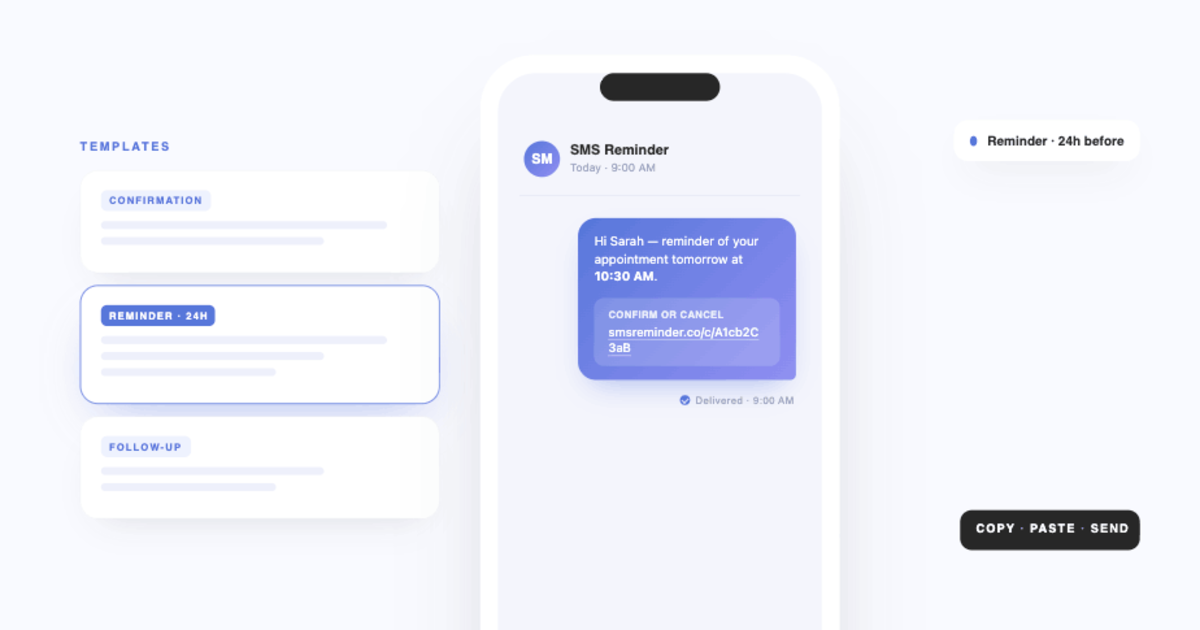
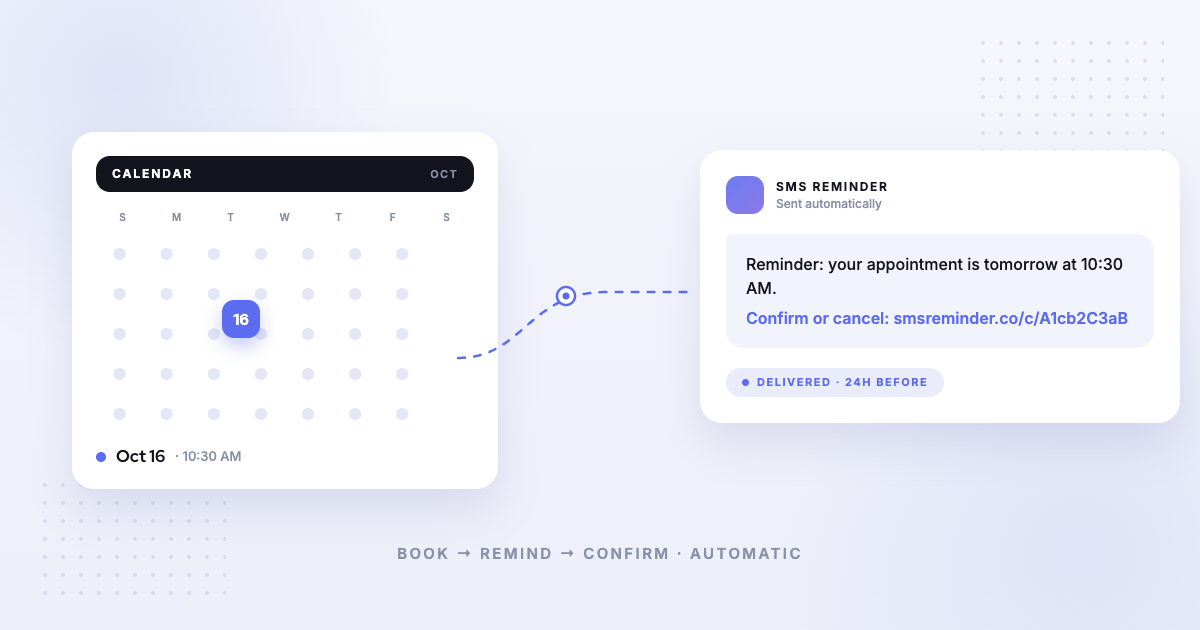
Text message reminders. Google’s appointment schedule reminders are emails.2 Google Calendar stopped sending SMS notifications years ago (see Google Calendar SMS reminders discontinued). With SMS Reminder, you choose a reminder template for each appointment type, and every booking gets its texts scheduled automatically.8
Several services on one link. Each service needs its own length, notice period and buffers. With SMS Reminder, you create as many appointment types as you need on every plan, and clients choose between them on one booking page.4 Calendly, for comparison, includes one event type on its free plan.3
One link for several staff. With SMS Reminder, you link each appointment type to its own synced Google Calendar, so “Haircut with Sam” books into Sam’s calendar and “Colour with Priya” books into Priya’s. The number of calendars you can sync depends on your plan.5 The booking page uses one weekly availability schedule, so block hours that differ per person with Busy events.11
Location and video links. Give each appointment type a location: an address, a phone call, the client’s own address or a Google Meet link created for every booking.12
What SMS Reminder doesn’t do: take payments, or let clients self-book recurring appointments. If you need payments or intake forms, a full scheduling platform may fit better.
Which should you choose?
| If you… | Choose |
|---|---|
| Work alone, offer one kind of appointment, and email reminders are enough | Google Calendar appointment schedules |
| Need to take payment when clients book | Google Calendar appointment schedules (Workspace Individual or higher) or a full scheduling platform |
| Offer several services or session lengths | A booking app with unlimited appointment types, such as SMS Reminder |
| Book for a team from one link | A booking app that maps services to staff calendars, such as SMS Reminder |
| Want text message reminders on bookings | A booking app with SMS reminders, such as SMS Reminder |
Can you use both?
Yes. Both write to Google Calendar. Some businesses keep a Google appointment schedule for internal meetings and use a booking app for client appointments. If you do, keep each booking page on its own appointment types so clients don’t see two different sets of times.
Ready to try it? Connect your Google Calendar and follow the step-by-step booking page setup guide, or see every booking page feature.
Frequently asked questions
Is Google Calendar’s appointment scheduling free?
Google Calendar includes appointment schedules, but Google lists several features as needing an eligible Google One or Google Workspace subscription, including creating more than one appointment schedule, automatic email reminders and checking availability across multiple calendars. Payments and email verification need Workspace Individual or higher, and co-hosts and secondary calendars need Business Standard or higher.1
Can Google Calendar appointment schedules send text message reminders?
No. Google describes appointment schedule reminders as emails: you can send up to 5, and you can’t edit their text.2 To send SMS reminders for bookings in Google Calendar, you need a booking or reminder app connected to the calendar, such as SMS Reminder.
Google Calendar appointment schedules vs a booking app: which is better?
Google Calendar’s appointment schedules suit one person offering one type of appointment with email reminders. A booking app connected to Google Calendar suits businesses that offer several services, book for more than one person, or want text message reminders. With SMS Reminder, you get unlimited appointment types on every plan, one link that books into different staff calendars, and SMS reminders on every booking.
What’s the best booking page app for Google Calendar?
It depends on what you need beyond Google’s built-in schedules. If you want text reminders and several services on one link without moving off Google Calendar, SMS Reminder adds a booking page with unlimited appointment types and SMS reminders to the Google Calendar you already use. If you need intake forms or payments, a full scheduling platform may fit better.
Can a booking app book appointments directly into Google Calendar?
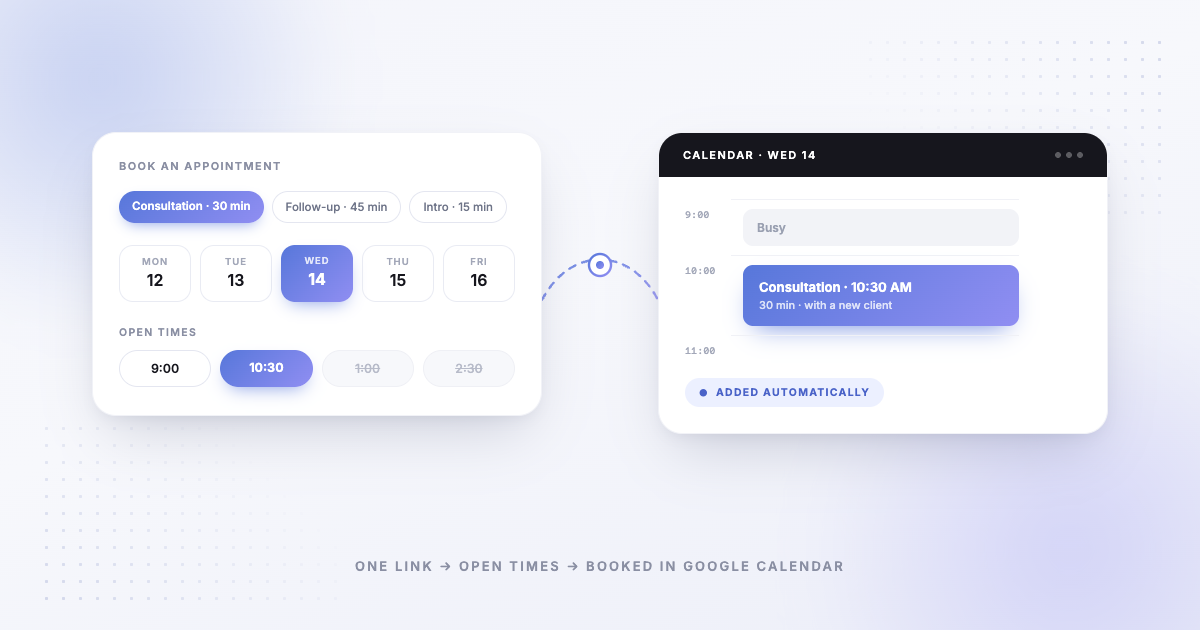
Yes. With SMS Reminder, clients pick an appointment type and an open time on your booking page, and the appointment is added to the Google Calendar linked to that appointment type. Events marked Busy in your calendar are never offered as open times.11
Sources
Details about other products can change. The Google Calendar and Calendly information below was checked on each provider’s own site on the date shown; confirm current details there before deciding. SMS Reminder details come from our help centre.
- Google — “Compare premium features for appointment schedules,” Google Calendar Help, https://support.google.com/calendar/answer/16287038, accessed 2026-10-05.
- Google — “Create an appointment schedule,” Google Calendar Help, https://support.google.com/calendar/answer/10729749, accessed 2026-10-05.
- Calendly — Pricing, https://calendly.com/pricing, accessed 2026-10-05.
- SMS Reminder Help — Create unlimited appointment types for your booking page.
- SMS Reminder Help — Setting up appointment booking for multiple calendars.
- SMS Reminder Help — Appointment notice periods & buffers.
- SMS Reminder Help — Allow clients to reschedule appointments.
- SMS Reminder Help — Automatically send SMS reminders on booked appointments.
- SMS Reminder Help — Add your logo and brand colour to your booking page.
- SMS Reminder — Pricing.
- SMS Reminder Help — Customizing your availability.
- SMS Reminder Help — Tell clients where the appointment happens (location and Google Meet).
This page compares our own product with Google Calendar. We’ve used Google’s published documentation for every Google detail and avoided claims we couldn’t source. If you spot something out of date, let us know.